- Python 35.9%
- CSS 24.4%
- Handlebars 20%
- JavaScript 18.6%
- Makefile 1.1%
|
|
||
|---|---|---|
| .forgejo | ||
| assets | ||
| branding | ||
| docs | ||
| locales | ||
| partials | ||
| tools | ||
| .gitattributes | ||
| .gitignore | ||
| default.hbs | ||
| docker-compose.yml | ||
| error.hbs | ||
| index.hbs | ||
| LICENSE | ||
| Makefile | ||
| package.json | ||
| page-me.hbs | ||
| page.hbs | ||
| post.hbs | ||
| README.md | ||

Evil Penguin — a retro desktop theme for Ghost
Your Ghost site as an operating system: posts and pages open as draggable windows,
with a file manager, a mail app and a scroll-story "Me" app. Built for evil-penguin.com, free for anyone.

Contents
- Install
- Customizing
- Features
- Organizing your content
- Theme settings
- Translations
- Analytics with OpenPanel (opt-in)
- Development
- Releasing
- Credits & licenses
Install
- Download
evil-penguin-vX.Y.Z.zipfrom the latest release. - In Ghost Admin go to Settings → Design & branding → Change theme → Upload theme and choose the zip.
- Click Activate.
Works with Ghost 5 and Ghost 6. Don't unzip the file, upload it as-is.
Customizing
A checklist to make the theme yours, roughly in order. Copy it into an issue to tick it off as you go. Details for each step are in Organizing your content and Theme settings.
Identity (Settings → General)
- Site title and description: the title is the 🐧 menu name and the README window heading
- Publication icon: e.g.
branding/penguin-512.png - Publication language:
en,de,es,ptorit(see Translations) - Publication logo, optional (Design & branding → Brand): replaces the pixel penguin in the menubar and on the boot screen. Leave it empty to keep the penguin
- Accent color (Design & branding → Brand): used for links and highlights
- Custom fonts, optional (Design & branding → Brand): override the heading and body fonts
Look (Settings → Design & branding → Customize)
- Window skin: the default for new visitors (Retro, Linux, XP, Vista, Darwin, Plain)
- Color scheme: Auto, Light or Dark
- Reading font: Sans, Serif or Mono
- Wallpaper, optional: one for every skin, or one per skin
- Boot screen: on or off
Content
- README: the home page lists your latest posts; nothing to create
- Me app: a page with the slug
me(title, excerpt, feature image, text) - Timeline: posts tagged
#timeline(type the#!), dated to their year - Projects: posts tagged
#project(type the#!); the feature image is the icon
⚠ Type the
#. The tags are#projectand#timeline, with the#in front. In Ghost's Tags field, type#project, notproject. The#makes it an internal tag, which the theme looks for and visitors never see. A tag without the#is an ordinary public tag, and the post will just land in~/blog.
- Blog: any other post
- Desktop icons for pages: turn on Feature this page
- Legal pages: Privacy, Terms, Data deletion (Meta and other platforms ask for them)
Navigation (Settings → Navigation)
- Primary: the File menu
- Secondary: the 🐧 menu and the README footer (put the legal pages here)
Contact & members
- Contact email: shows the Mail app
- Members / subscriptions, optional (Settings → Membership): adds ★ Subscribe to the tray
- Comments, optional (Settings → Membership): shown under posts
Analytics, optional
- OpenPanel: enable it, add the client id and, if self-hosted, the API URL (see Analytics)
- Mention it in your privacy policy
Check it
- Open the site in each skin, light and dark, and on a phone
- Turn on Plain and try it with only the keyboard
Features
Desktop

| Icon | Opens |
|---|---|
README.md |
The home window: your site description, projects, latest posts and legal links |
| Me | The Me app (shown when a page with the slug me exists) |
projects / blog |
The Files app on that folder |
| The Mail app (shown when Contact email is set) | |
| featured pages | That page, in a window |
settings |
The Settings app |
Files app

Folders open a file manager window instead of switching the desktop. It has a sidebar (projects, blog), a path bar and an item count, and the sidebar switches folders inside the same window. Every skin dresses it differently: a 1-bit list for Retro, Motif bevels for Linux, a blue task pane for XP, a soft navigation pane for Vista and a Finder-style sidebar for Darwin.
Mail app

A compose window addressed to your Contact email. When the visitor presses Send, their own email app opens with the name, subject and message filled in. The theme stores and sends nothing, so it needs no server, but the visitor needs an email app on their device.
Me app

A full-screen story about you that blurs everything behind it:
- A hero window built from the page with the slug
me: its title, excerpt, feature image and content. - An index window listing every timeline entry. Clicking an entry jumps to it.
- A big banner with your site title.
- The timeline: every post with the internal tag
#timeline, oldest first. Each post becomes a window titledYEAR · slugwith its feature image, title and excerpt. If the post has content, it appears in a side window that slides in next to it. As you scroll, each window slides into place and stacks onto the one before.
Set each timeline post's publish date to the year you want it to show (for example 2017-01-01). Close the app with ✕ or Esc.
Windows

- Every internal link opens as a window, so you can keep several pages open next to each other.
- Posts open as modal windows. Everything else dims and can't be clicked until you close the post with ✕ or Esc. Clicking the dimmed area makes the post window shake.
- Drag a window by its title bar, resize it from the corner to any size, and double-click the title bar to maximize it.
- Selection → Tile windows fills the free space next to the desktop icons. It picks the number of columns that gives each window a comfortable shape, stretches the last row so no gaps are left, and gives the active window the first slot.
- Esc closes the active window. Window buttons only change their background on hover, so the ✕ never fades.
- Every window has a real URL. Sharing
/my-post/opens the desktop with that window already open, and the back button works. - With JavaScript off, every page is still a normal, readable document. Search engines and link-preview crawlers see clean HTML.
Window skins

There are six skins. Each one changes the windows, the desktop icons and the wallpaper. See every skin, feature by feature.
| Skin | Windows | Icons & Files app | Built-in wallpaper |
|---|---|---|---|
| Retro (default) | 1-bit, hairline frame | pixel art | dotted grid |
| Linux | Motif/CDE bevels, blue caption, light and dark palettes | pixel art in X11 colours | 70s stripes and an eye-patched penguin, light and dark versions |
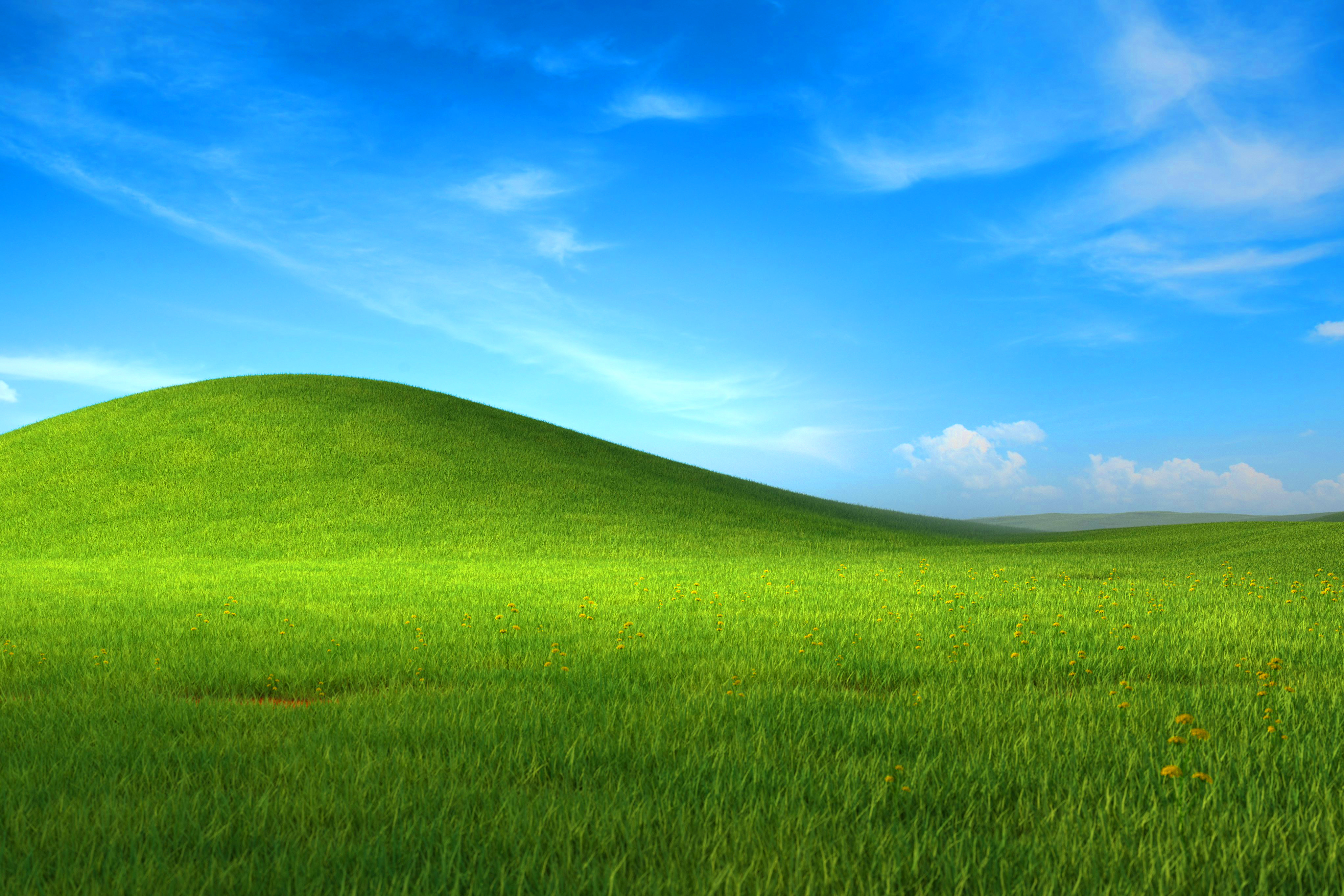
| XP | blue gradient caption | smooth, yellow folders | green hill where a penguin plants a pirate flag |
| Vista | smoked glass | smooth, glass hover | aurora light ribbons |
| Darwin | pinstripes, traffic lights | smooth, blue folders | soft colour circles behind a glossy torus covered in stickers |
| Plain | none: a notepad with tabs, every link opens a new tab | text only, images become their alt text | none |
The skins are original CSS homages to those systems and contain no vendor logos or copyrighted wallpapers. The site owner sets the default, and visitors can pick their own in the Settings app. Light and dark mode apply to every skin, Linux included.
Wallpapers

Every built-in wallpaper is original vector art, drawn by small Python scripts in tools/wallpapers/. Each one takes its composition from a well-known wallpaper, then adds an evil twist and a bit of animation:
| Wallpaper | Twist | Animation |
|---|---|---|
hills (XP) |
a penguin plants an open-source Jolly Roger on the crest | realistic clouds drift endlessly across the sky and behind the hill, each at its own pace, receding and approaching at random; gusts of wind sweep the meadow from time to time; the flag waves; birds fly over |
aurora (Vista) |
none, just the light | none, it stays still |
darwin (Darwin) + live torus |
stickers (Linux, sudo, rm -rf /…) stuck on a glossy donut | the torus spins and tilts towards your pointer (WebGL, in desktop.js) |
linux-light / linux-dark |
the penguin's eye is alive, and LINUX_ has a terminal cursor |
the eye follows your pointer, blinks now and then, squeezes shut when clicked and slowly turns bloodshot if you keep poking it (it heals); a gleam runs along the stripes; the cursor blinks |
- Everything stops for visitors who have reduce motion turned on.
- The Linux penguin's eye is a tiny real element laid over the wallpaper.
desktop.jsrepeats the browser'scovermaths to keep it exactly on the drawn eye at any screen size. If you move the eye inlinux.py, updateEYE_X/EYE_Y/EYE_Rindesktop.jsto match. It only appears on the built-in Linux wallpaper, and it stops blinking on its own when animations are off.
Edit a script and run make wallpapers to regenerate them. clouds.py needs numpy and Pillow (with WebP support). The other scripts need only the standard library. The random detail (grass, clouds, ribbons) uses fixed seeds, so the output only changes when you change the code.
Reading view

- Posts are laid out at a comfortable 68 characters per line.
- Reading font: Sans (Atkinson Hyperlegible), Serif or Mono (Departure Mono).
- Text size: S, M or L, chosen by the visitor.
- Supports all Ghost cards, including the wide and full-width ones.
Settings app

Visitors can change the skin, light or dark mode, animations on or off, the reading font and the text size. With animations off, every wallpaper freezes. The theme loads the same SVGs as file.svg#still, and a rule inside each file stops it. Window effects are turned off too. Their choices are saved in their own browser, and "Reset" goes back to your site's defaults.
Menubar and tray
| Menu | Items |
|---|---|
| 🐧 | Site description, README.md, secondary navigation (privacy, terms, …) |
| File | Primary navigation, Close window, Close all |
| Edit | Copy link, Settings… |
| Selection | Cascade windows, Tile windows |
| Find | Search… (Ghost's built-in search) |
| View | ~/projects, ~/blog, Mail, Toggle light / dark |
The tray on the right has the light/dark toggle, Mail ✉, Subscribe ★ (shown when members are enabled), Settings and a clock in the site's language. The menus are native <details> elements, so they also work without JavaScript.
Boot screen

A short BIOS-style boot plays once per visit. Any key or click skips it. It never plays for visitors who have reduce motion turned on, and you can switch it off in the theme settings.
Mobile

On a phone the icons sit in a grid and windows open full-screen.
Also
- A "kernel panic" page for 404s and other errors.
- Ghost's custom fonts setting (Design → Brand) overrides the heading and body fonts.
- Your brand accent color is used for links and highlights.
- Comments show on posts when you enable them in Ghost.
- All fonts and scripts are bundled with the theme. No CDNs and no third-party requests.
Organizing your content
⚠ Type the
#. The tags are#projectand#timeline, with the#in front. In Ghost's Tags field, type#project, notproject. The#makes it an internal tag, which the theme looks for and visitors never see. A tag without the#is an ordinary public tag, and the post will just land in~/blog.
| You want… | Do this in Ghost |
|---|---|
A project in ~/projects |
Add the tag #project (with the #) to the post. Its feature image becomes the icon. |
A post in ~/blog |
Nothing: every post without #project or #timeline is listed |
| The Me app | Create a page with the slug me |
| A timeline entry in Me | Add the tag #timeline (with the #) to a post and set its publish date to the year |
| The Mail app | Theme settings → Contact email |
| A page icon on the desktop | Open the page settings and turn on Feature this page. |
| Menu items under File | Settings → Navigation → Primary |
| Legal links in the 🐧 menu and README | Settings → Navigation → Secondary (Privacy, Terms, Data deletion, …) |
A window title like about.md |
It comes from the post's slug. |
| Desktop wallpaper | Theme settings → Wallpaper (all skins) or Wallpaper retro / linux / xp / vista / darwin (one skin) |

Theme settings
Find them under Settings → Design & branding → Customize.

| Setting | Default | What it does |
|---|---|---|
| Window skin | Retro | Default window style (Retro, Linux, XP, Vista, Darwin, Plain) |
| Color scheme | Auto | Auto follows the visitor's OS; or force Light or Dark |
| Wallpaper | — | Used for every skin. Overrides everything below. |
| Wallpaper retro / linux / xp / vista / darwin | — | Wallpaper for one skin. If empty, that skin's built-in wallpaper is used. |
| Boot screen | on | Plays the boot sequence once per visit |
| Reading font (Post) | Sans | Default font for the reading view |
| Contact email | — | Shows the Mail app and addresses its messages |
| Enable OpenPanel | off | Opt-in analytics, see below |
| OpenPanel client id | — | Shown when OpenPanel is enabled |
| OpenPanel API URL | — | Your self-hosted API. Leave empty to use OpenPanel cloud. |
Translations
The theme's own text (menus, the Settings, Files and Mail apps, the boot screen, the error page) ships in English, Deutsch, Español, Português and Italiano. Ghost picks the language from Settings → General → Publication language: set it to en, de, es, pt or it. Any other code falls back to English.
Your posts and pages aren't translated, since Ghost serves one language per site. To add a language, copy locales/en.json to locales/<code>.json, translate the values (keep the keys) and run make restart.
Analytics with OpenPanel (opt-in)
Analytics are off by default. The theme loads nothing until you turn them on.
- In OpenPanel, create a client and add your site's domain to it.
- In Ghost's theme settings, turn on Enable OpenPanel.
- Fill in the client id. For a self-hosted OpenPanel, also fill in the API URL (for example
https://openpanel-api.example.com).
The tracker (op1.js) is bundled with the theme, so no script is loaded from openpanel.dev. Page views are tracked, including each window you open, because every window changes the URL. Outgoing links and data-track attributes are tracked too. OpenPanel is cookieless, but still mention it in your privacy policy.
Development
Requirements: Docker (with Compose), Node 20 or newer, and make.
make up        # Ghost on http://localhost:2368 with this folder mounted as the theme
               # first run: create the admin at /ghost, then activate "evil-penguin"
make restart   # after editing .hbs templates or package.json (CSS and JS reload on refresh)
make logs      # follow Ghost logs
make lint      # gscan, same check as CI
make zip       # dist/evil-penguin-vX.Y.Z.zip from the committed HEAD
make reset     # wipe the local Ghost content
make wallpapers # regenerate the SVG wallpapers
make           # list all targets
Layout
default.hbs            page shell: menubar, desktop icons, app templates, scripts
index.hbs              home (README window) and archives (ls window)
post.hbs / page.hbs    a single window with the reading view (posts are modal)
page-me.hbs            the Me app (page with slug "me" + #timeline posts)
error.hbs              kernel panic
partials/
  window.hbs           window chrome, used as a block partial: {{#> window name="x.md" modal=true}}
  article.hbs          the reading view
  desktop.hbs          desktop icons
  files.hbs  mail.hbs  settings.hbs   app windows (<template>s)
  menubar.hbs  boot.hbs  openpanel.hbs  icon.hbs
  ico/*.hbs            desktop icons: pixel + smooth variant, the skin picks one
  px/*.hbs             pixel-art SVG icons
locales/*.json         en, de, es, pt, it
assets/images/wallpapers/  built-in wallpapers (generated, see tools/wallpapers)
tools/wallpapers/      wallpaper generators (Python; clouds.py also uses numpy + Pillow); `make wallpapers`
assets/css/screen.css  tokens, skins, reading view
assets/js/desktop.js   window manager (vanilla JS, no build step)
How windows work
desktop.js intercepts clicks on internal links. It fetches the page Ghost already renders, takes its [data-window] element and adds it to the desktop. A page that has no [data-window] (RSS, members pages and so on) opens normally. App windows that aren't Ghost pages (Settings, Files, Mail) are <template id="ep-app-NAME"> elements opened with data-app="NAME" (and an optional data-arg). Windows marked data-modal (posts, Me) are moved into a native <dialog> and opened with showModal(), so the browser makes everything behind them inert, handles Esc, and draws the dimmed backdrop.
Releasing
CI runs on Forgejo Actions (.forgejo/workflows/ci.yml) and uses the same Makefile:
- Every push and pull request:
make lint, thenmake zip. - Tag
vX.Y.Z:make releasechecks that the tag matches theversioninpackage.json, builds the zip and creates a Forgejo release with the zip attached.
# 1. bump "version" in package.json (e.g. 0.2.0), commit and push main
# 2. tag that commit with the same version and push the tag:
make tag            # = git tag v0.2.0 && git push origin v0.2.0
The tag must equal v + the version in package.json, so let make tag write it. Don't run make release yourself: CI runs it when the tag arrives.
The workflow uses Forgejo's automatic token. If that token isn't allowed to create releases, add a repository secret called
RELEASE_TOKENwith repository write access. The job runs on runners labelleddocker, so changeruns-onif your runner uses a different label.
docs/, tools/, .forgejo/, the Makefile and docker-compose.yml are left out of the zip (see .gitattributes).
Credits & licenses
- Theme: MIT © pulgamecanica, see LICENSE.
- Departure Mono by Tobias Fried: SIL OFL 1.1
- Atkinson Hyperlegible by the Braille Institute: SIL OFL 1.1
- OpenPanel web tracker: MIT
Wallpaper inspirations
The wallpapers are original drawings made for this theme. They borrow the composition and mood of these works, not their pixels. Thanks to their authors:
- hills (XP): Bliss, the green-hill photograph by Charles O'Rear used as the Windows XP default wallpaper, and its fan-made 4K remakes (reference).
- aurora (Vista): the Windows Vista Aurora default wallpaper (reference).
- linux-light / linux-dark: a late-1970s inspired Linux wallpaper shared on r/linux, and its dark resize (light, dark). Tux, the Linux penguin, was created by Larry Ewing; the penguin here is drawn from scratch.